
Learning how to set up DNS records is one of the most important steps after registering a domain. Your domain name gives people an address to visit, but DNS tells browsers, email services and other applications where to find the resources connected to it.
Incorrect DNS settings can make your website unavailable, interrupt business email or send visitors to the wrong server. A proper domain DNS setup helps prevent these problems and keeps your online services connected.
If you have not registered a domain yet, register through TezHost. You can also explore TezHost domain registration services and choose a suitable domain extension.
This DNS records guide explains the essential record types, how to configure them, how to verify changes and which mistakes to avoid.
1. Understand How DNS Works Before Making Changes
Before you set up DNS records, it helps to understand what the Domain Name System actually does.
DNS works like an internet directory. It translates human-readable domain names into information that computers use to locate services. When someone enters your domain into a browser, DNS helps the browser identify the correct destination for the website.
For example, a visitor types example.com. A DNS lookup helps identify the server associated with that hostname, allowing the browser to request the website from the correct destination.
DNS records are stored in a DNS zone. Each record provides specific instructions for a domain or subdomain. Some records direct visitors to a web server, while others identify mail servers or provide verification and security information.
The main components include:
- Domain registrar: The company where your domain is registered.
- Nameservers: Servers that identify where the authoritative DNS zone is managed.
- DNS hosting provider: The service that stores and responds to DNS queries.
- Web hosting server: The server that delivers your website.
- Email provider: The service responsible for receiving and sending domain email.
These services can be provided by one company or by several different providers. Understanding how they work together makes your domain DNS setup much easier to manage.
For a deeper explanation, read What Is DNS and How Does It Work?.
2. Choose Where Your Domain’s DNS Will Be Managed
An important part of any DNS records guide is understanding nameservers. Nameservers tell the internet where to find the authoritative DNS records for your domain.
If your domain uses your hosting provider’s nameservers, you will usually manage its DNS records through that provider’s control panel. If it uses a third-party DNS service, you will make changes through that service instead.
Before changing nameservers, confirm:
- Which provider currently manages your DNS zone.
- Whether your website records are already configured.
- Which email provider handles your domain email.
- Whether you use subdomains or third-party verification records.
- Whether the new DNS provider has all the records your services require.
Changing nameservers does not automatically copy your existing DNS records. If you move DNS management without recreating the required entries, your website, email or other connected services may stop working.
This is why you should review your existing records before making changes to your domain DNS setup.
If you are transferring your domain to another registrar, remember that a registrar transfer and a DNS migration are separate processes. Read How to Transfer a Domain to a New Registrar before proceeding.
Need help selecting a domain or hosting service? Talk to a TezHost sales agent.
3. Learn the Main DNS Record Types
To set up DNS records correctly, you need to understand what each record does. Using the wrong record type or entering an incorrect value can prevent a website, email service or application from working.
A Record
An A record maps a domain or hostname to an IPv4 address.
Example:
- Type: A
- Name: @
- Value: Your hosting server’s IPv4 address
- TTL: 3600
The @ symbol commonly represents the root domain, although the exact format depends on your DNS provider.
AAAA Record
An AAAA record maps a hostname to an IPv6 address. If your hosting server supports IPv6, your provider may supply an address for this record.
CNAME Record
A CNAME record points one hostname to another hostname rather than directly to an IP address.
For example, www.example.com may point to example.com, depending on your provider’s requirements.
A CNAME generally cannot coexist with other record types at the same hostname. The root domain also has special restrictions under standard DNS rules, although some DNS providers support flattening or ALIAS/ANAME-style features.
MX Record
An MX record identifies the mail servers responsible for receiving email for your domain.
Your email provider supplies the required mail server hostnames and priorities. Incorrect MX records can cause incoming messages to be rejected, delayed or delivered to the wrong service.
TXT Record
TXT records store text information associated with your domain. They are commonly used for:
- Domain ownership verification.
- SPF email authentication.
- DKIM email authentication.
- DMARC email policy.
- Third-party service verification.
TXT records are especially important when configuring business email and protecting your domain against spoofing.
SRV Record
An SRV record identifies the hostname and port for a particular service. It is used by applications and communication platforms that need to locate a service endpoint.
NS Record
NS records identify the authoritative nameservers for a DNS zone. Your registrar’s nameserver settings and the NS records published within the zone must be consistent with your DNS provider’s instructions.
Knowing these record types is the foundation of a reliable DNS records guide. It also makes it easier to troubleshoot problems when you set up DNS records for multiple services.
4. How to Set Up DNS Records Step by Step
Once you know which records your website and services require, you can set up DNS records through your DNS provider’s control panel. The interface varies between providers, but the general process is similar.
Step 1: Collect the Correct DNS Values
Obtain the required DNS information from your hosting or email provider.
For a website, you may need an IPv4 address for an A record, an IPv6 address for an AAAA record, or a target hostname for a CNAME record.
For email, collect the MX records and any required SPF, DKIM and DMARC values.
Do not guess these values. A small mistake in a hostname, IP address, priority or TXT string can cause service failures.
Step 2: Open Your DNS Management Panel
Log in to the provider currently managing your DNS zone. Look for an option such as DNS Management, DNS Zone Editor or Manage DNS.
If your domain and hosting are with TezHost, use the relevant domain or hosting control panel to access the DNS management options available for your service.
Step 3: Add the Required Records
Select the record type and enter the details supplied by your provider.
A basic website may require an A record for the root domain and a CNAME or A record for the www hostname. Your actual configuration depends on the hosting provider’s instructions.
Check these fields carefully:
- Type: A, AAAA, CNAME, MX, TXT or another supported type.
- Name/Host: The domain or subdomain the record applies to.
- Value/Target: The IP address, hostname or text value.
- Priority: Used by certain records, especially MX records.
- TTL: How long DNS resolvers may cache the record.
Step 4: Save and Review the DNS Zone
Save your changes and check the DNS zone for duplicate or conflicting records.
Two different A records for the same hostname may be intentional when they point to multiple web servers. However, they should not be added without understanding the hosting setup.
Similarly, conflicting MX records can direct email to an unintended provider. Review existing entries before completing your domain DNS setup.
Step 5: Verify the Configuration
Use DNS lookup tools such as dig, nslookup or online DNS checkers to confirm that your records are being returned as expected.
For example:
dig example.com A
dig www.example.com CNAME
dig example.com MX
dig example.com TXT
Replace example.com with your actual domain. These commands query DNS information; they do not change your records.
Following these steps gives you a more dependable way to set up DNS records and verify that your configuration is correct.
If you need help choosing a domain or hosting plan, register with TezHost or speak with our sales team.
5. Configure DNS for Your Website and Business Email
A domain can connect to multiple services at the same time. Your website may use one hosting provider while your email is handled by Microsoft 365, Google Workspace or another email platform.
A good domain DNS setup ensures that each service has the correct records without interfering with the others.
Connecting Your Website
A typical website configuration may include:
- An A record pointing the root domain to your hosting server’s IPv4 address.
- An AAAA record if your server supports IPv6.
- A CNAME or A record for the
wwwhostname, according to your provider’s instructions.
When you set up DNS records for a website, use the exact values supplied by your hosting provider. Do not assume that every hosting service uses the same configuration.
Connecting Business Email
Email requires additional attention. Your email provider will normally supply MX records and may also require SPF, DKIM and DMARC configuration.
- MX: Identifies where incoming email should be delivered.
- SPF: Specifies which mail servers are authorised to send email for your domain.
- DKIM: Uses a cryptographic signature to help receiving systems verify that an email was authorised by the signing domain.
- DMARC: Tells receiving systems how to handle messages that fail authentication checks and can provide reporting.
Publish the exact values provided by your email service. Avoid creating multiple SPF records for the same hostname. Instead, combine authorised senders into one valid SPF record.
If you are building a professional online presence, your website and email should be planned together. This DNS records guide helps you understand why both sets of records matter.
6. Understand DNS Propagation and TTL
How long does it take for DNS changes to work?
DNS updates can become visible within minutes, but some users may continue seeing cached information for longer. The timing depends on TTL values, resolver caching, nameserver changes and the provider’s infrastructure.
TTL stands for Time to Live. It tells DNS resolvers how long they may cache a record before querying again.
For example, a TTL of 3600 seconds represents one hour. A resolver that has cached the previous value may continue using it until its cache expires.
Keep these points in mind:
- A record update and a nameserver change may have different propagation behaviour.
- Lowering TTL before a planned migration can help reduce caching time, but should be done in advance.
- Changing TTL does not instantly clear existing cached records.
- Different networks and DNS resolvers may show different results temporarily.
When you set up DNS records for a website migration, plan the change carefully. Keep the old hosting service active until you have verified that traffic and email are reaching the correct destinations.
A well-planned domain DNS setup reduces the risk of disruption during website launches, hosting migrations and other infrastructure changes.
7. Avoid Common DNS Configuration Mistakes
Even experienced website owners can make mistakes when editing DNS. A careful review before and after you set up DNS records can prevent unnecessary downtime.
Changing Nameservers Without Copying Existing Records
Before switching nameservers, copy all required records to the new DNS provider. This includes website, email, verification and application records.
Using the Wrong IP Address
An incorrect A record can send visitors to an unrelated server or cause the website to become unreachable. Always use the address supplied by your hosting provider.
Deleting Email Records Accidentally
Removing MX, SPF, DKIM or DMARC records can disrupt email delivery or authentication. Review email-related entries before editing a DNS zone.
Creating Duplicate or Conflicting Records
Duplicate records are not always wrong, but conflicting values can cause unpredictable results. Check existing entries before adding new ones.
Ignoring DNS Security
Protect access to your registrar and DNS hosting account. Use strong, unique passwords, enable multi-factor authentication where available, restrict account access and keep recovery details current.
You should also review your domain’s ownership and account information. Our guide on How to Confirm You Own Your Domain explains why accurate registration details matter.
For additional protection, read How to Protect Your Domain from Unauthorized Changes.
A secure domain DNS setup is not only about correct records; it also depends on protecting the accounts and systems that control them. This is an important part of any practical DNS records guide.
How TezHost Is Improving the Domain and DNS Experience
Managing a domain should not mean navigating technical settings without support. Website owners need a provider that can help them understand domain registration, hosting requirements and the configuration steps that connect everything.
TezHost brings domain registration and hosting services together, helping customers manage essential parts of their online presence through one provider. Customers can explore domain extensions, choose hosting services and get assistance when they need guidance with their setup.
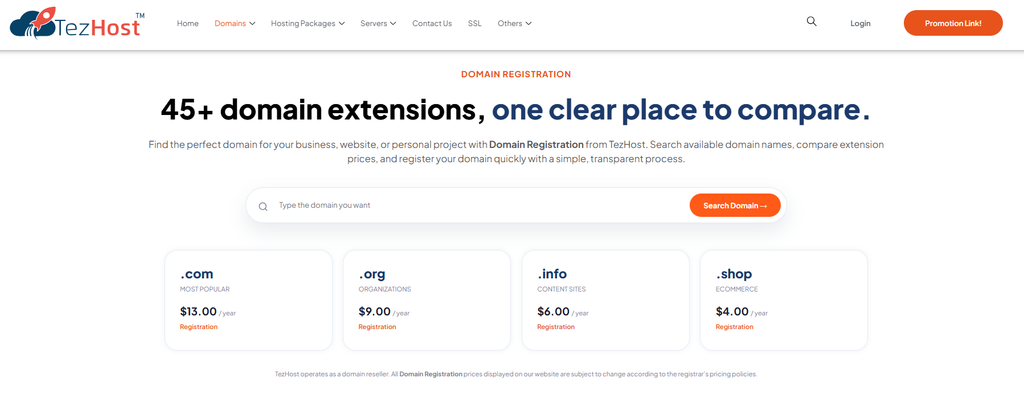
For technical users, having access to the right hosting environment and support makes it easier to set up DNS records for websites, applications and business services. For new website owners, guidance can help reduce common setup errors before they affect visitors or email communication.
TezHost also publishes practical resources to help customers understand how internet infrastructure works, including our DNS guide, domain security guidance and domain transfer instructions.
If you are planning a new website, explore TezHost domain services and available hosting solutions. You can register here or talk to a sales agent if you need help selecting the right service.
Conclusion
Learning how to set up DNS records gives you greater control over your domain, website and business email. The process starts with understanding where your DNS is managed, collecting the correct values, adding the required records and verifying that they work as expected.
A useful DNS records guide should also remind you to protect your registrar account, preserve existing email records and plan nameserver changes carefully. DNS configuration is not something to rush, especially when your website or email supports daily business operations.
Whether you are launching a new website or moving an existing one, a correct domain DNS setup helps keep your online services connected and accessible.
Ready to register your domain and hosting? Visit TezHost, register your domain, or contact our sales team for assistance.
Frequently Asked Questions
1. What are DNS records?
DNS records are instructions stored in a domain’s DNS zone. They tell DNS resolvers how to locate services associated with a domain, such as a website, email server or application. Understanding these entries is the starting point of any DNS records guide.
2. Which DNS records do I need for a website?
Most basic websites need an A record for the root domain and a record for the www hostname, often a CNAME or another A record. Your hosting provider will specify the exact values and record types required for your domain DNS setup.
3. How do I set up DNS records for the first time?
Log in to the provider managing your DNS zone, collect the required values from your hosting or email provider, add the appropriate records, save the changes and verify them using DNS lookup tools such as dig or nslookup. This is the standard process to set up DNS records.
4. How long does DNS propagation take?
Some DNS updates become visible within minutes, while cached information may remain available for longer. TTL settings, resolver caching and nameserver changes all affect the timing.
5. What is the difference between A and CNAME records?
An A record maps a hostname to an IPv4 address. A CNAME record maps one hostname to another hostname. They serve different purposes and have different restrictions.
6. Can I use different providers for my domain, website and email?
Yes. You can register your domain with one company, host your website with another and use a separate email provider. You must configure the DNS records correctly so that each service points to the right destination. A carefully planned domain DNS setup makes this possible.
7. Can incorrect DNS records affect email?
Yes. Incorrect or missing MX records can disrupt incoming email. Incorrect SPF, DKIM or DMARC records can also affect email authentication and deliverability.
8. Where can I get help with DNS configuration?
Start with the documentation and DNS values supplied by your hosting, domain or email provider. If you use TezHost services, contact the TezHost sales team for guidance on choosing the right domain and hosting solution. You can also explore TezHost domain services before you set up DNS records for your website.